Managing a business online today usually involves more than one person. Maybe you hired a marketing agency, brought in an SEO expert, added a staff member to manage reviews, or simply need someone else to help update your business information.
That’s where sharing access to your Google Business Profile becomes important.
Many business owners still search for “how to share GMB access” because Google keeps changing the dashboard layout, settings, and account management system. What worked a few years ago looks completely different now.
The good news is that sharing access is actually simple once you know where the settings are located.
In this guide, we’ll walk through the exact process step-by-step and explain which permission level you should give to different users.
Google My Business is now officially called Google Business Profile, but many people still call it GMB.
Sharing access allows another person to help manage your business listing without giving away your personal Google password.
This means they can:
Instead of sharing login details, Google lets you safely add users directly to your Business Profile.
That’s the correct and secure way to do it.
Before sharing access, make sure:
Also, remember that different users can have different permission levels. You do not always need to give full ownership access.
For most agencies or SEO companies, “Manager” access is usually enough.
First, go to:
Google Business Profile
Log into the Google account connected to your business listing.
Once logged in, search your business name directly on Google. Your business management panel should appear at the top of the search results.
You’ll see options like:
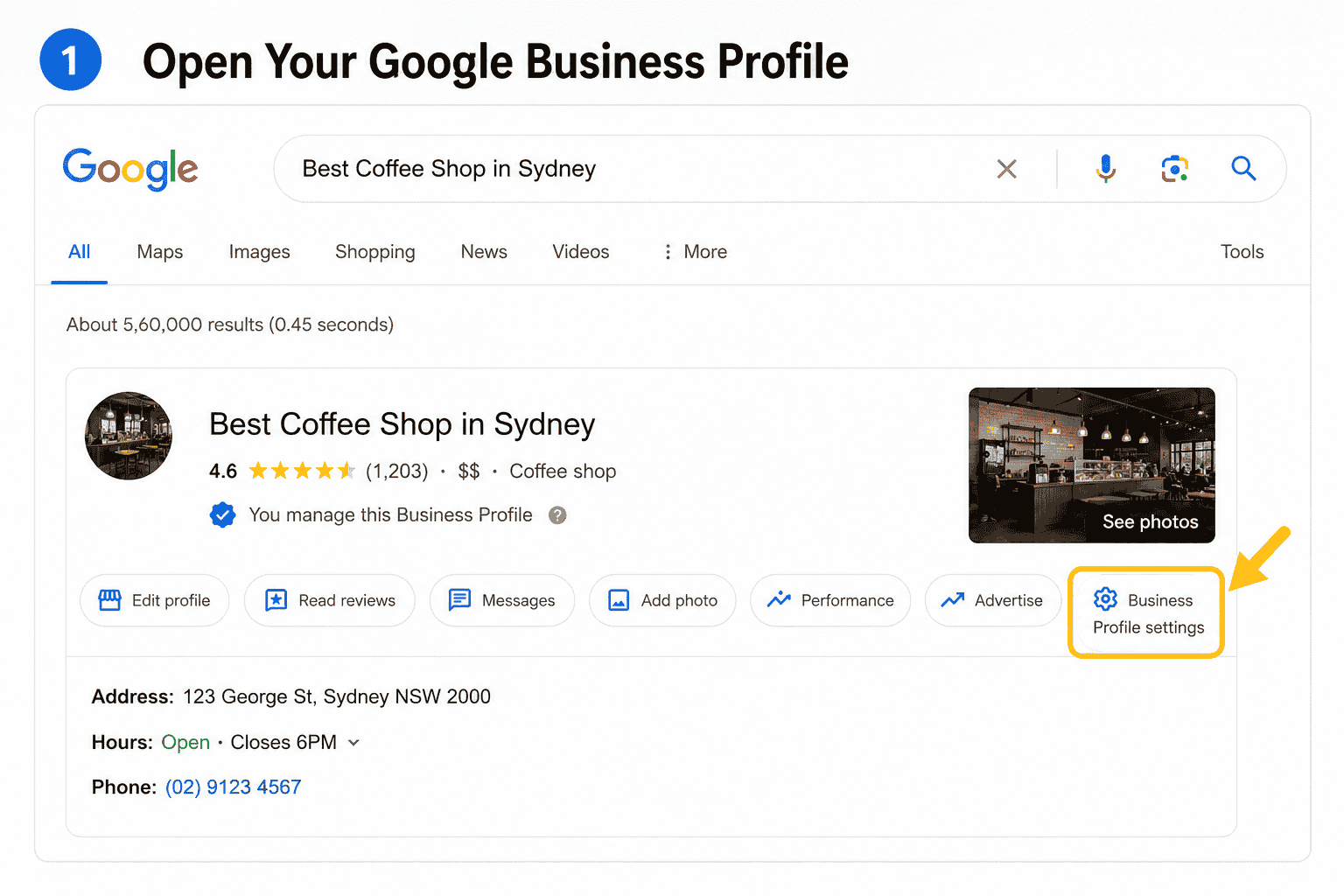
Now click on:
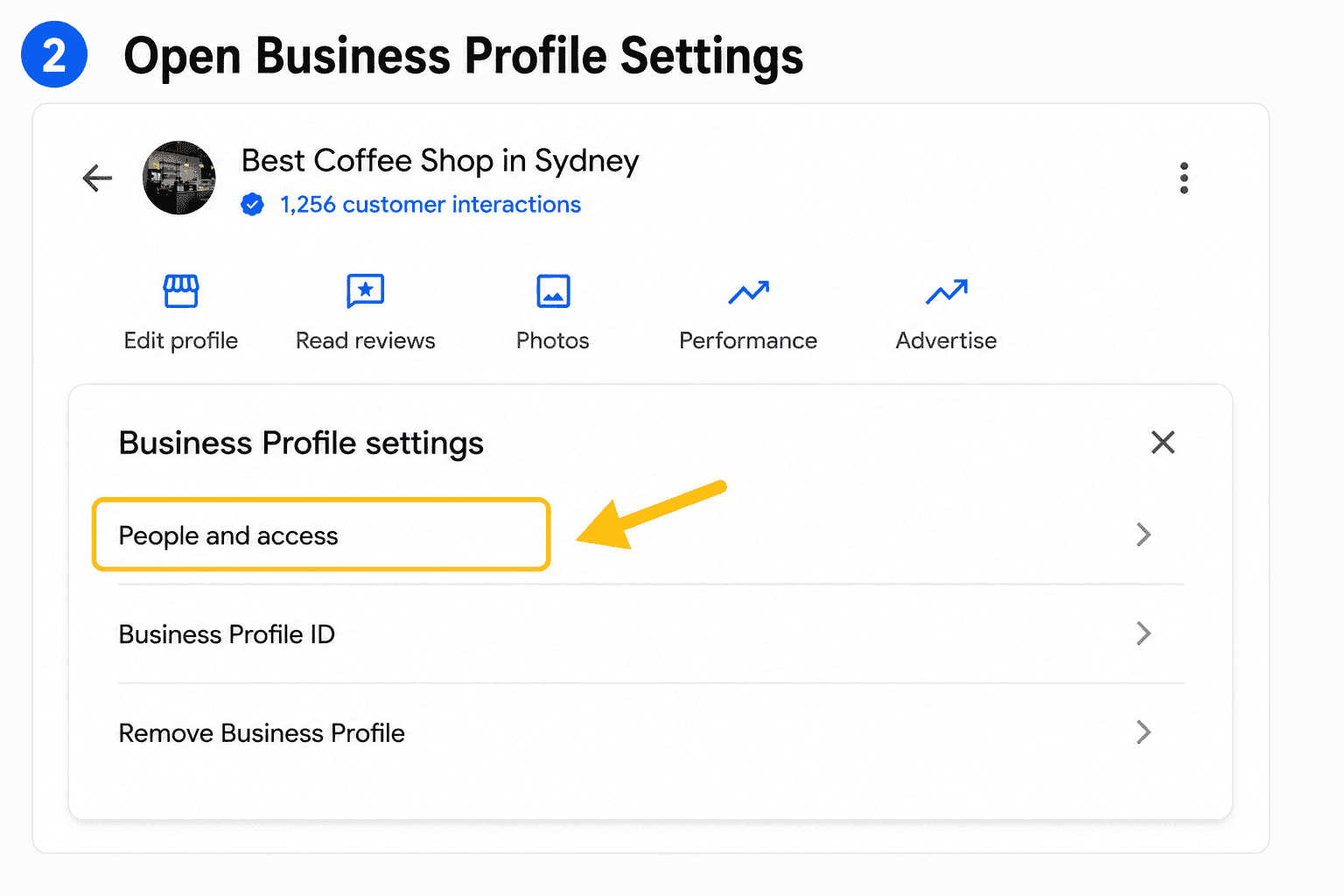
Business Profile Settings
A small menu will appear.
Then click:
People and Access
This is the section where Google allows you to add or remove users.
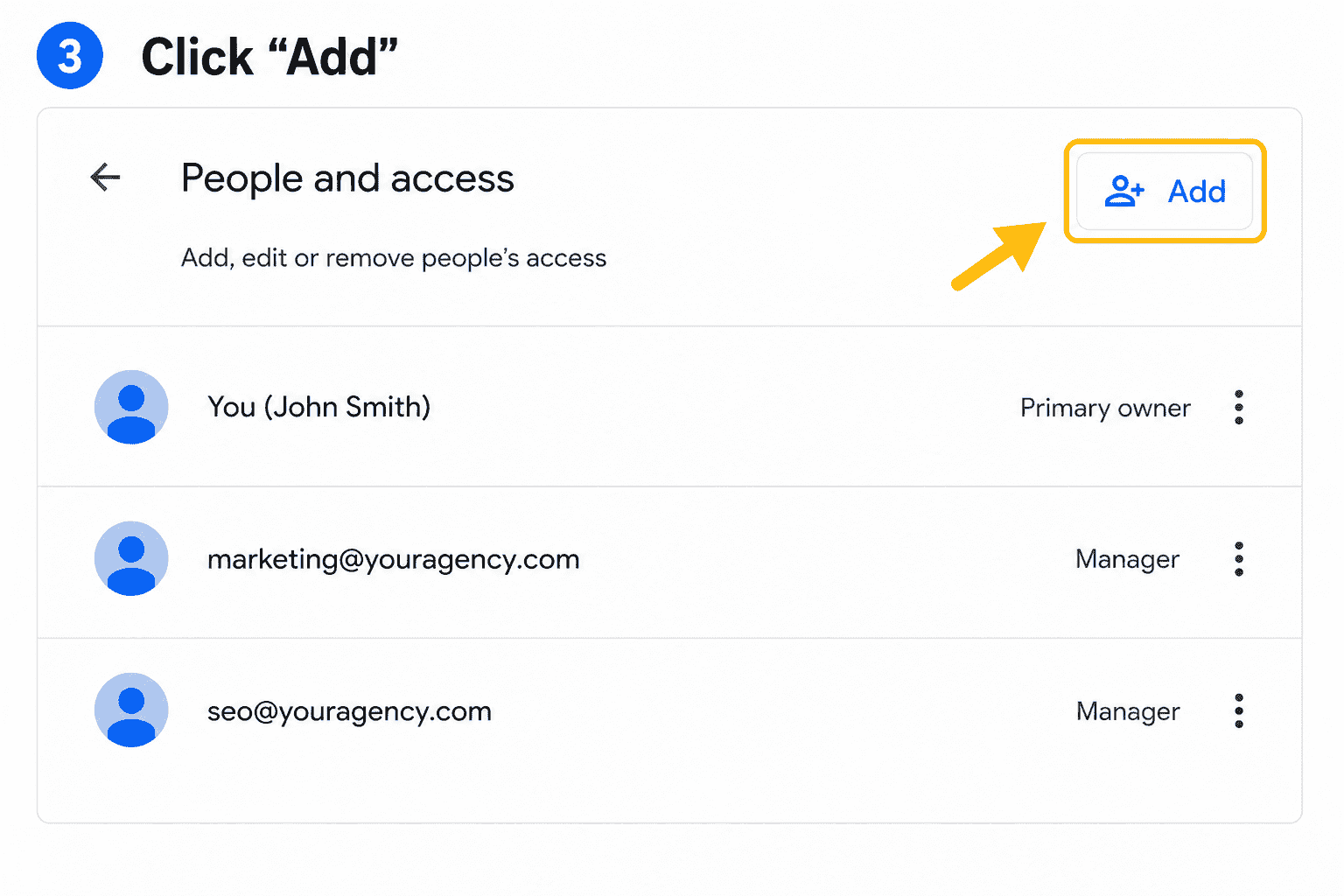
Inside the “People and Access” section, you’ll see current users connected to the profile.
On the top-right corner, click:
Add
Google will now ask for the email address of the person you want to invite.
Type the Gmail address carefully.
After that, choose the access level.
Usually you’ll see options like:
For most situations, Manager access is the safest option because it allows the person to manage the profile without taking ownership control.
Only give Owner access to trusted business partners or primary company members.
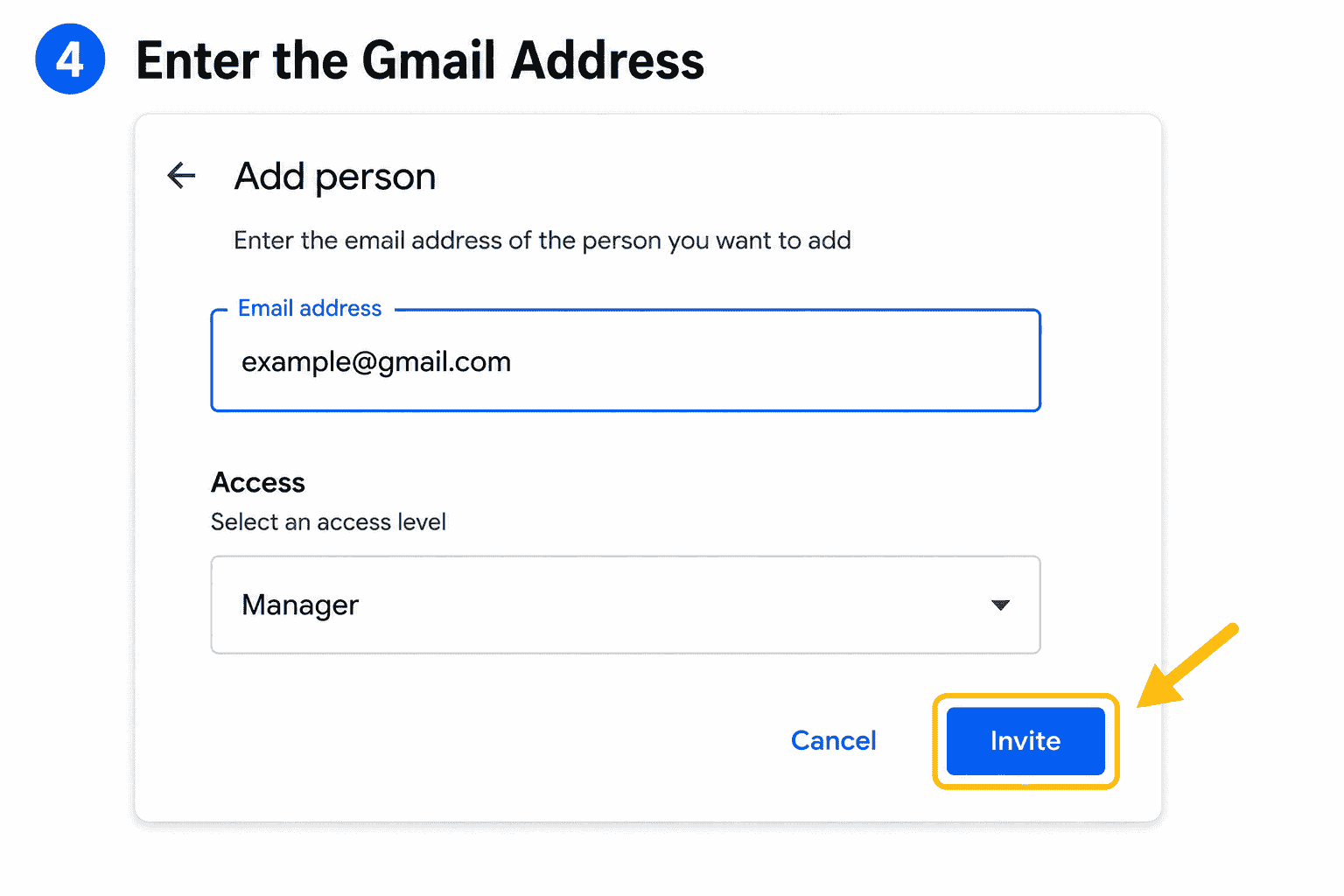
After selecting the role, click:
Invite
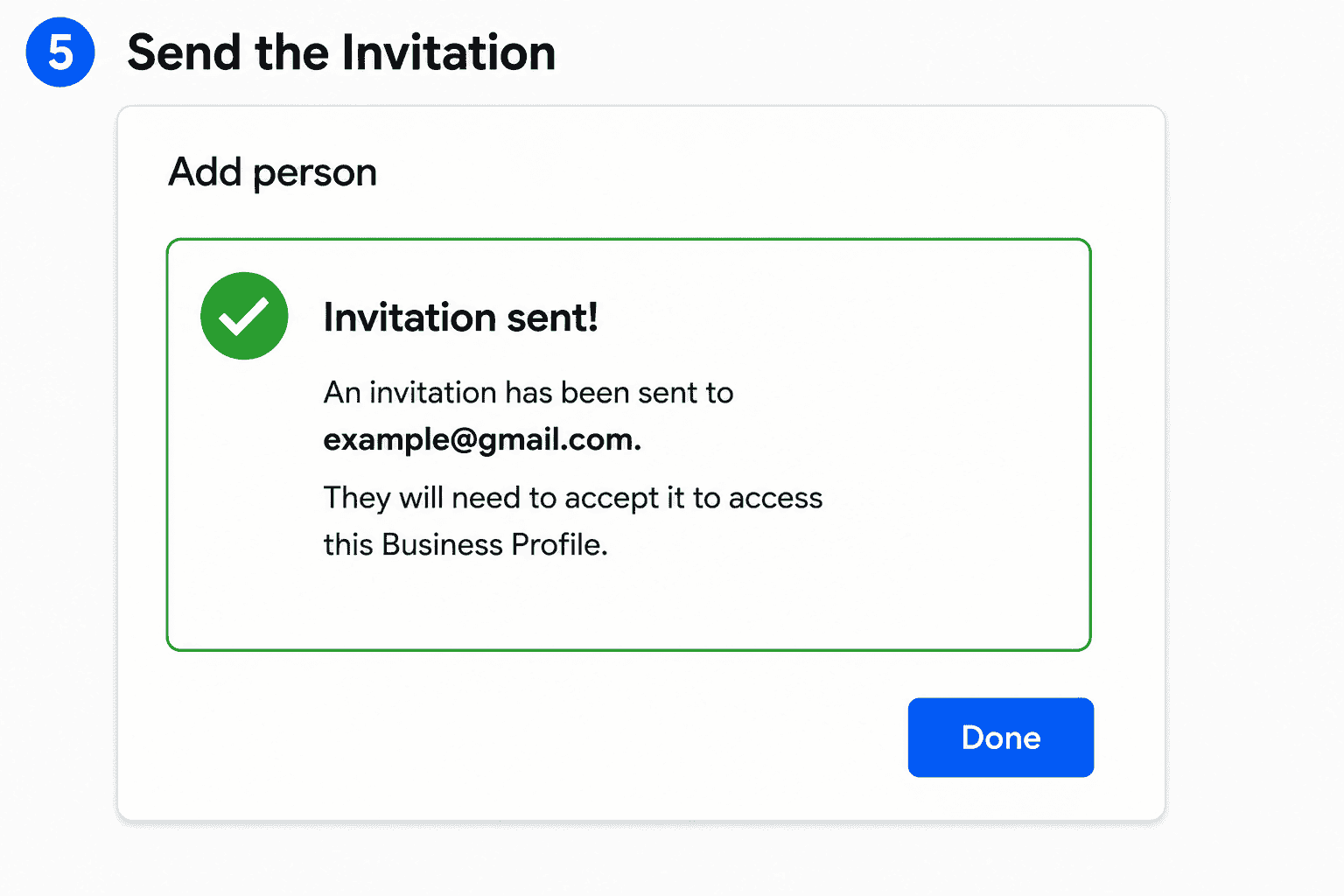
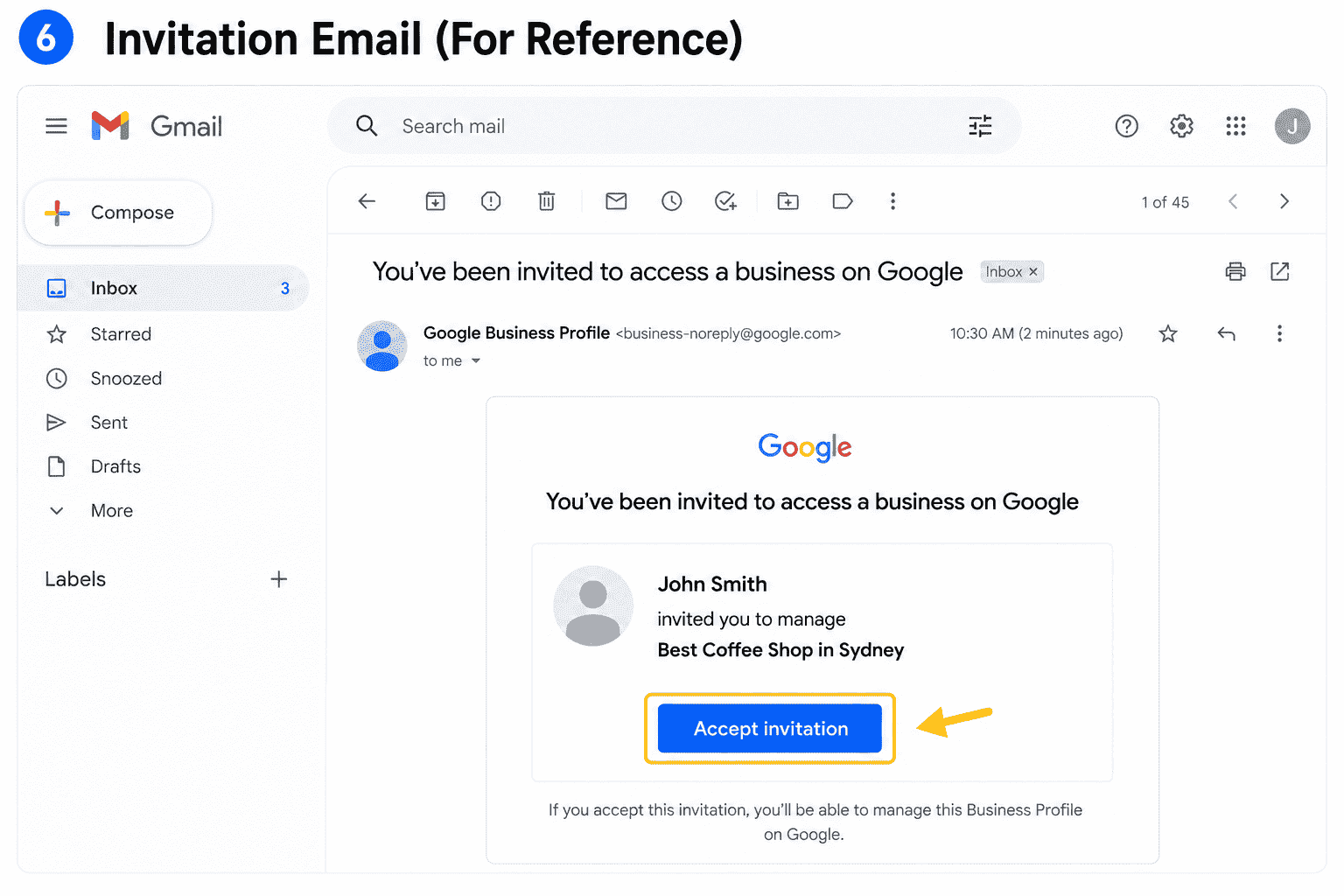
Google will send an invitation email to that user.
Once they accept the invitation, they’ll instantly gain access to the Business Profile.
That’s it.
The process usually takes less than two minutes.
A lot of business owners get confused here.
If you’re hiring:
Manager access is usually enough.
They can still:
But they cannot fully remove your ownership rights.
That keeps your business secure.
Sometimes users face issues while adding someone. Here are a few common reasons.
Wrong Gmail Address
Even a small spelling mistake will stop the invitation from reaching the correct person.
Business Not Verified
Google may restrict permission sharing until verification is complete.
Using the Wrong Google Account
Many businesses accidentally log into a personal Gmail instead of the account connected to the Business Profile.
Invitation Not Accepted
The invited person must accept the email invitation before access becomes active.
A surprising number of businesses still share full Google passwords with marketing agencies or freelancers.
That’s risky.
Using Google’s official access-sharing system is much safer because:
For local businesses investing in SEO or reputation management, this becomes extremely important.
Giving access to your Google Business Profile is something most businesses eventually need to do, especially when working with SEO professionals, marketing agencies, or staff members helping manage online visibility.
The process itself is fairly straightforward once you know where the settings are located. What matters more is understanding which permission level to assign and keeping ownership access protected.
For most businesses, Manager access works well for day-to-day profile management without giving away full control of the account.
Call Us Now on +91 9041001555 or send us an email to admin@thegeminigeeks.com to discuss your project